▶ Listen to this article
If you have ever wanted your website to act — not just answer questions, but send the answer somewhere useful — then webhooks are the tool you are missing. In this guide you will learn what a chatbot webhook actually is, how it fits into workflow tools like n8n, Zapier, and Make, exactly what a WordPress chatbot sends when you connect one, and how to turn that payload into automations that run your business. No jargon — just the working pieces, grounded in how a real self-hosted chatbot behaves.
What Is a Webhook?
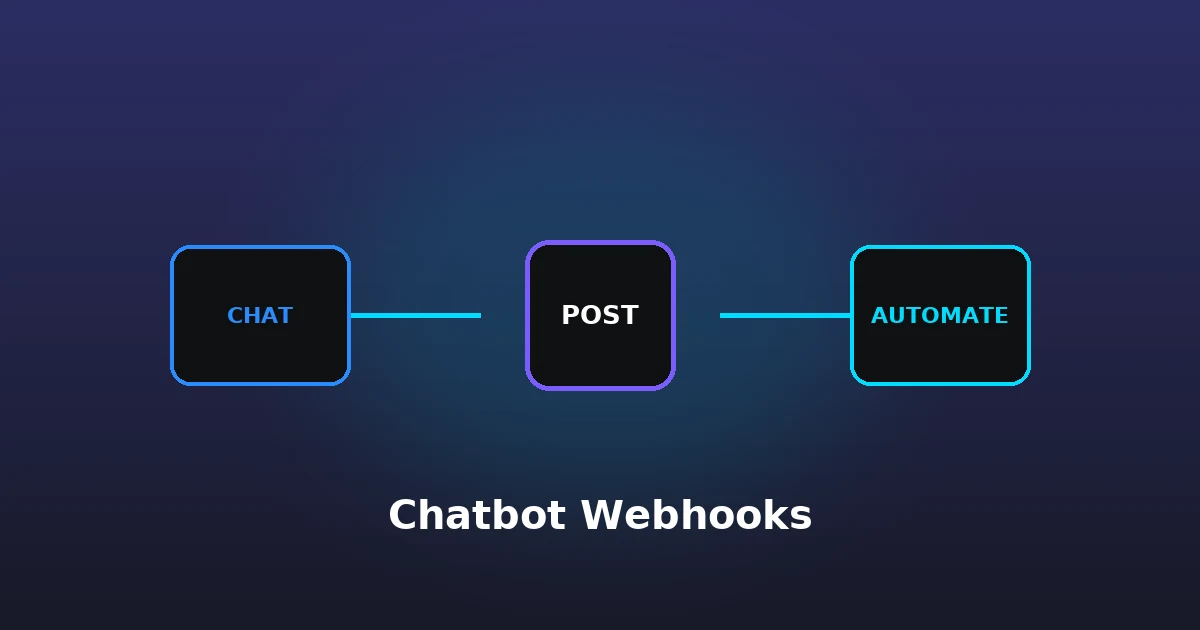
A webhook is a way for one service to notify another automatically. The simplest mental model: when something happens on one side — a visitor sends a message, a payment succeeds, a form is submitted — the first service POSTs a small JSON payload to a URL on the second service. The second service reads the payload and does something with it. One push, from server to server, with no polling and no human in the middle.
People often confuse webhooks with APIs, and the distinction is worth being precise about. An API is more like a pull: your code asks a server “give me this data,” and the server responds. A webhook is a push: the server decides “when X happens, I will send this to you,” and it does so with no request from you. For automation, pushes beat polling because they are immediate and they only fire when there is genuinely something to send. Polling would mean asking a server every few seconds “anything new?” — wasteful, slow, and rate-limited. A webhook delivers the event the instant it occurs.
To see the concept applied across the web, the model is the same everywhere. Payment providers use webhooks to tell your app that a charge succeeded. Git platforms use webhooks to trigger builds when code is pushed. Chat platforms use webhooks to post messages when something happens elsewhere. Once you recognize that push-notification pattern, you will start spotting webhooks behind a great deal of the automation that quietly runs the modern internet.
Why Webhooks Matter for a Chatbot
On their own, chatbots answer a question and move on. That is genuinely useful — answering a visitor at 2 a.m. is better than leaving them waiting — but a conversation that ends inside the chat window is a dead end for your business. The moment you want that conversation to do something — save the lead, alert your team, update a spreadsheet, open a CRM record — you need a way to move the conversation out of the chat window and into your other tools. A chatbot webhook is that bridge.
Consider the concrete difference for a business. Without a webhook, a visitor’s question about pricing is just a message that is answered and then forgotten. The visitor leaves, and unless they happened to fill in a form, you never hear from them again. With a webhook, that same message is pushed to your automation in real time — a sales alert, a spreadsheet row, a CRM contact — and it becomes part of your pipe as an action, instead of vanishing into the history of a chat. That is the leap from a chatbot that merely talks to a chatbot that actually moves your business forward.
Anatomy of a Chatbot Webhook Payload
When a WordPress chatbot forwards a conversation, it sends a JSON object to the URL you configure. The exact fields depend on the chatbot, but a well-designed one includes the essentials you need to build on top of the data. Here is a realistic example of what a self-hosted chatbot sends:
{
  "message": "Does the Pro plan include exports?",
  "reply": "Yes, the Pro plan includes CSV conversation export.",
  "sessionId": "a1b2c3d4e5f6",
  "url": "https://yoursite.com/pricing/",
  "timestamp": "2026-08-29 14:14:03"
}
- message — what the visitor typed. Your primary signal for intent: “pricing” versus “support” versus “bug”.
- reply — what the AI answered. Context your team needs later so a rep does not repeat themselves.
- sessionId — a unique id that groups all messages from one conversation into a single thread. This is how you reconstruct a full conversation from many individual pushes.
- url — the page the visitor was on when they messaged. A message on /pricing/ and one on /support/ mean very different things.
- timestamp — when the interaction happened, used for time-sensitive follow-ups.
Notice what is conspicuously absent here: there is no automatic email in the payload. A webhook fires for every message, not only when a visitor volunteers their contact details. That is actually good news — it means you never miss a conversation that never turned into a form fill. If you need an email, you collect it inside the conversation (asking the visitor) and then handle it in your workflow, rather than expecting the payload to include a field the visitor never gave up.
How a Chatbot Webhook Flows Through n8n
The cleanest way to see this working end to end is with n8n — a popular open-source automation tool. Here is the complete flow, step by step, so you know exactly what is happening behind the scenes.
The webhook trigger node
In n8n, add a Webhook node and set the HTTP method to POST. n8n hands you a unique URL of the form /webhook/your-unique-id. This is your endpoint — the address the chatbot will push data to.
The chatbot sends the payload
In your WordPress chatbot settings, enable the webhook integration and paste the n8n URL. Now, every time a visitor sends a message and the chatbot replies, WordPress POSTs the JSON payload to that URL. n8n receives it as its trigger event.
Filter, transform, and act
From the trigger, add further nodes. A Filter node can drop messages that do not meet a condition (for example, ignore everything not from a /pricing/ page). A Set or Code node maps the payload fields into the shape your target system expects. Finally, an action node — Slack, Google Sheets, HubSpot, HTTP Request — does the actual work.
The result is a live pipeline: a visitor messages your chatbot, and within seconds the lead is in Slack, the sheet, and the CRM without anyone lifting a finger. That is the entire point of connecting a webhook to an automation platform.
Three Automations That Use the Payload
To make this concrete, here are three automations that take minutes to set up and solve real problems. Each starts with the same webhook trigger; the difference is what happens after the payload arrives.
1. Slack alert for buying intent
Add a filter that only forwards messages where the url contains /pricing/ or /plans/. Map message and reply into a Slack notification. Your sales team now sees a hot lead the moment it happens, instead of hours later when the visitor has gone. Speed-to-lead matters: the faster a rep responds, the more likely a visitor is to convert.
2. Google Sheets lead log
Map each payload field to a column and write a new row per message. You get a clean, searchable, filterable record of every conversation — not just the winners, but everything. That becomes the raw material for your reporting and your follow-up queues. Add a “handled” column and update it as you work through leads.
3. CRM contact creation
Map the payload to a Create Contact action in HubSpot, Pipedrive, or Similar. Use the page URL to pick the correct pipeline — a /pricing/ visitor goes to sales, a /support/ visitor goes to support. Attach the AI reply as a note so the rep opens the record knowing exactly what was already discussed. Because the webhook fires on every message, no conversation is ever lost, even those that never turned into a form submission.
The common thread is that the webhook gives you the raw material, and the automation platform decides what to do with it. You can combine these patterns — filter in n8n, log to a sheet, and create CRM records selectively — without writing any custom code.
n8n vs Zapier vs Make: Which Automation Tool?
Once you know you want to automate your chatbot’s webhook, the next question is which platform to run the automation on. The three most common choices are n8n, Zapier, and Make, and they differ in ways that matter for small teams and self-hosted setups.
n8n
n8n is an open-source automation platform that you can run yourself, which makes it a natural fit if you are already self-hosting your chatbot. It has a visual, node-based editor, supports hundreds of integrations, and can be hosted on your own server so your automation stays under your control too. It has a steeper learning curve than the hosted alternatives, but for a technical user it is the most flexible and the most private option. The official n8n documentation on connect your workflows to other systems is a solid starting point.
Zapier
Zapier is the easiest to set up and the best known. Its strength is the sheer size of its app directory — thousands of pre-built integrations mean the tool you need is probably already there. The trade-offs are cost (pricing tiers based on tasks per month) and that everything runs on Zapier’s hosted infrastructure, so your data passes through their servers. For a non-technical user who just wants Slack and sheets working in minutes, it is hard to beat.
Make
Make (formerly Integromat) sits between the two. It has a visual flow editor that is friendlier than n8n’s and more powerful than Zapier’s “if this then that” model, with a generous free layer. Like Zapier it is hosted, so your payloads pass through Make’s servers. It is a strong middle ground for a business that wants flexibility without running its own automation server.
Which one is right depends mostly on two questions. First, do you want to host the automation yourself? If yes, n8n is the natural choice. Second, how much money do you want to commit to per-task pricing? If a generous free tier matters, Make is attractive; if you value the broadest integration catalog above all, Zapier leads.
Security and Reliability
A few habits keep your webhook safe and stable, and they are worth getting right from the start.
Use HTTPS
Prefer HTTPS URLs so the payload travels encrypted between your server and your automation platform. A plain HTTP endpoint could expose conversation data in transit.
Protect the endpoint
Treat your webhook URL as a secret. Anyone who discovers an unauthenticated webhook URL could POST arbitrary junk into your workflow, which then shows up in Slack, your sheet, or your CRM. If your automation platform supports it, add a shared-secret header or verify a token before acting on the payload.
Handle failures
Webhooks are fire-and-forget by design. If the receiving endpoint is down when the chat fires, the push may be lost. In n8n and Make you can add error handling — a retry, a fallback branch, or a notification — so a failed step never silently drops a lead. For a self-hosted chatbot, your own infrastructure is the source, and your automation is the receiver, so you control both ends of the reliability question.
YakWP and Webhooks
YakWP, the self-hosted WordPress chatbot, includes a built-in webhook integration in the free plugin. Enable it in settings, paste in your n8n, Zapier, or Make URL, and every visitor message is forwarded as a clean payload with all five fields described above. It works with n8n, Zapier, Make, Pipedream, or any service that accepts a webhook POST — with no extra subscription and no third-party relay, because the data goes straight from your own server to the endpoint you choose.
For a full, step-by-step build of a lead pipeline, see our guide to using a WordPress chatbot with n8n, which walks through the payload, the workflow, and the scaling decisions in detail.
Common Webhook Mistakes to Avoid
Most problems people hit with chatbot webhooks come from a small set of avoidable mistakes. Knowing them in advance saves real debugging time.
Expecting the payload to contain an email
A webhook fires for every message, and a visitor rarely hands over their email as the first thing they type. Build your workflow around the fields you actually receive — message, reply, sessionId, url, timestamp — and collect an email inside the conversation if you genuinely need one. If you design around a field that is not there, every run silently fails.
Forgetting that the same visitor sends many messages
Because the webhook fires per message, one visitor can produce several pushes in a single session. Use the sessionId to group them into a thread, or your Slack channel and spreadsheet will fill with every single question rather than one conversation per visitor. Decide up front whether you want one row per message or one row per session.
No failure handling
A webhook is one push with no automatic retry. If your automation endpoint is briefly down, that push is gone. Add a guard in the receiving workflow — a fallback branch that logs the failure, or a notification — so a transient error does not silently swallow a lead.
Logging everything without a plan
Capturing every conversation is good, but a flood of undifferentiated rows is not useful. Decide what you will act on and add a filter early in the workflow, so the automation routes the important messages to action and sends the rest to a quiet log rather than blasting your whole team.
Frequently Asked Questions
Is a webhook the same as an API?
Not quite. An API lets your code pull data on request. A webhook is a push – a service sends data to a URL when something happens. For automation, pushes are immediate and fire only when relevant.
Do I need to know how to code to use a chatbot webhook?
No. Modern automation platforms like n8n, Zapier, and Make let you connect a webhook trigger and map fields visually, without writing code. A basic understanding of JSON helps, but you do not need to be a developer.
What if my webhook call fails?
Webhooks are fire-and-forget, so a failed call can drop data. Add error handling in the receiving workflow – a retry, a fallback branch, or a notification – so nothing is silently lost.
Can a chatbot webhook send my data to a third party?
Only if you point the webhook at a third-party URL. A self-hosted chatbot sends the payload to whichever URL you configure, so you control exactly where the conversation goes.
What does self-hosted mean for a webhook chatbot?
A self-hosted chatbot runs on your own WordPress server, and its webhook sends the conversation directly to the endpoint you choose. There is no middleman relay and no per-message fee.
Conclusion
A chatbot webhook is the bridge that turns a helpful chat window into an automation engine. By pushing the visitor message, the AI reply, the session, and the page URL to a tool like n8n, Zapier, or Make, you can alert your team, log your leads, and feed your CRM automatically — no coding required. If you run WordPress and want a self-hosted chatbot with a built-in webhook that sends your data where you choose, YakWP does it out of the box, straight from your own server.
Leave a Reply