
Blog

  • OpenCode Go Review: 33 AI Models for a Flat $10 a Month

    OpenCode Go Review: 33 AI Models for a Flat $10 a Month

    ▶ Listen to this article

    OpenCode Go is a model subscription that costs a flat $10 a month, with no contract — you can cancel any time. It comes from the team behind OpenCode, and it exists to fix one specific problem: getting reliable access to good AI models without juggling a dozen provider keys.

    Programmer coding on laptop
    One subscription, many models.

    The pitch is simple. The OpenCode team tests a curated list of open models, benchmarks each one against the provider hosting it, and sells you access to the whole lineup behind a single API key. Flat ten a month, no contract. No per-token math, no rate-limit roulette, no wondering whether the model you’re calling is still alive.

    Here’s what you actually get: every model in the lineup, the exact request limits, and the real numbers on what ten dollars buys.

    What OpenCode Go Actually Is

    OpenCode Go is a flat-rate subscription. One API key, one endpoint, a curated line-up of open models. It’s the paid companion to the free OpenCode coding agent, but you don’t need the agent to use it — the API is a standard OpenAI-compatible endpoint that plugs into whatever you already run.

    OpenCode markets Go toward developers, and the model list is benchmarked for agentic work. But here’s the thing the marketing undersells: these aren’t niche coding models. They’re the same general-purpose large language models people use for everything — writing, chatbots, research, summarization, data extraction, translation, automation. Qwen, GLM, DeepSeek, Kimi, MiniMax. They write code, but they also write articles, answer customer questions, and turn messy data into clean output.

    So while the homepage says “coding models,” what you’re really buying is cheap, reliable access to good AI models. What you do with them is up to you.

    The Pricing: a Flat $10 a Month

    Every month is $10. There’s no annual contract, and you can cancel any time.

    That also means the old “$5 first month” promo is gone — but the way to shave the cost is Go’s referral credit: share your referral link, a friend subscribes to Go, and you both get a $5 usage credit applied toward your Go usage limits. It’s a credit that keeps working every time you bring someone in, not a one-time signup discount.

    But the part most people miss is the usage ceiling. The limits are:

    • 5-hour limit — $12 of usage
    • Weekly limit — $30 of usage
    • Monthly limit — $60 of usage

    You’re paying $10 a month. The monthly usage ceiling is $60. That’s the 6x multiplier OpenCode advertises — they buy reserved GPU capacity and bulk-discounted rates, then pass the savings through. For most models, the math works out to roughly six times what you paid.

    Limits are measured in dollar value, not request count, because different models cost different amounts to run. A cheap model like MiMo-V2.5 gives you far more requests than an expensive one like GLM-5.2. Here’s the full table, straight from the OpenCode’s own docs (and our notes on the same page).

    The Model Lineup: 33 Models Now (All of Them Listed Below)

    ModelRequests / 5hRequests / weekRequests / month
    Space Bunny FreeUnlimitedUnlimitedUnlimited
    LongCat 2.5 Preview FreeUnlimitedUnlimitedUnlimited
    Muse Spark 1.3 Contributor45,300113,300226,600
    Muse Spark 1.2 Contributor45,300113,300226,600
    MiMo-V2.6-Flash30,10075,200150,400
    MiMo-V2.530,10075,200150,400
    DeepSeek V4.1 Flash26,00065,000130,000
    DeepSeek V4 Flash13,00032,50065,000
    LongCat-2.011,40028,60057,200
    DeepSeek V4 Flash Vision Exp6,50016,25032,500
    GLM-5.3-Flash6,32015,79031,580
    Qwen3.8 Flash5,40013,50027,000
    Qwen3.7 Plus4,30010,80021,600
    Hy34,30010,75021,500
    GPT 6 Luna4,23010,56021,130
    MiniMax M2.73,4008,50017,000
    Qwen3.6 Plus3,3008,20016,300
    MiMo-V2.6-Pro3,2508,15016,300
    MiMo-V2.5-Pro3,2508,15016,300
    MiniMax M33,2008,00016,000
    GPT 5.6 Luna2,0505,10010,250
    Hy4 preview1,3503,3806,770
    Kimi K2.7 Code1,3503,3806,750
    Kimi K2.61,1502,8805,750
    DeepSeek V4 Pro1,0502,6005,200
    GLM-5.28802,1504,300
    GLM-5.18802,1504,300
    GLM-5.32205401,080
    Grok 4.7169423845
    Grok 4.6169423845
    Qwen3.7 Max170420840
    Qwen3.8 Max160400810
    Kimi K3110250490

    Read those top rows again. The MiMo V2.6 Flash and MiMo-V2.5 lanes each give you 150,400 requests a month, DeepSeek V4.1 Flash is back up to 130,000 after its boost returned, and even DeepSeek V4 Flash sits at 65,000. For a flat ten a month. That’s the “cheap model, tons of requests” end of the spectrum, and it’s genuinely hard to exhaust for a solo user.

    The expensive end — Grok 4.7 and Grok 4.6 at 845 requests a month, Kimi K3 at 490 — is for when you need a heavy frontier model on a specific task. You don’t run those for everything. You run them when it matters, and the cheap models carry the routine work.

    The lineup keeps growing. The newest arrivals are Grok 4.7 (which joins rather than replaces Grok 4.6), GPT 6 Luna, the MiMo V2.6 pair — Flash and Pro — and Space Bunny Free, plus LongCat 2.5 Preview Free — two free models OpenCode is running for a limited time. OpenCode now documents 33 models on the Go page; the API endpoint itself returns 43 ids, because extra lanes (a deepseek-flash alias, GLM-5, Grok 4.5, Hy3 preview, Kimi K2.5, MiMo V2 Omni and V2 Pro, MiniMax M2.5, Qwen3.5 Plus, and an undocumented stealth model listed as omen-alpha) are routable without ever appearing in the marketing table. Treat the documented 33 as the supported set — and if you value zero-retention guarantees, stay away from the unofficial ids entirely, since an undeclared model publishes no privacy row.

    Worth knowing before you wire it into your own stack: Grok 4.6 is listed with its own limits and prices, but on the plain OpenAI-compatible endpoint it currently answers with an “endpoint is unavailable” error. It works through OpenCode’s own client; if you’re calling the API directly, pick one of the other models.

    Why Some Models Give You So Few Requests

    The 6x multiplier isn’t uniform. OpenCode is honest about this in their docs: for most models, bulk discounts and reserved GPU capacity make the 6x work. For a few — usually new models or ones already priced cheaply by their own provider — OpenCode hasn’t been able to negotiate a better rate, so the multiplier is lower.

    Either way, you still get slightly more than paying the model provider directly. The $60 monthly ceiling is the ceiling, not the typical experience. Most people using a mix of cheap and expensive models will land somewhere in the middle and never touch the limit.

    One detail that trips people up: the usage ceiling is per model, not one shared $60 pot. Most models carry the full $60, but the ones OpenCode couldn’t negotiate a bulk rate on are capped lower — GLM-5.3, Kimi K3, Grok 4.7, Grok 4.6, Qwen3.8 Max, GPT 6 Luna, GPT 5.6 Luna, DeepSeek V4 Pro, MiMo-V2.6-Pro, MiMo-V2.5-Pro and DeepSeek V4 Flash Vision Exp sit at $15 a month, while DeepSeek V4 Flash, Qwen3.8 Flash, Qwen3.7 Max and Hy4 preview sit at $30. DeepSeek V4.1 Flash is back at the full $60 while its boost runs, and Space Bunny Free carries no limit at all. Per model the 5-hour and weekly caps scale the same way: 20% and 50% of the monthly figure. It only matters if you plan to run one model for everything — check that model’s ceiling before you commit.

    One more lever worth knowing: the DeepSeek models bill at half price outside peak hours, so the same monthly ceiling stretches roughly twice as far when your workload lands in the cheap window. Peak is 01:00–04:00 and 06:00–10:00 UTC on weekdays, and weekends are off-peak the whole way through. If any of your work is batchable, scheduling it outside those windows is free headroom on exactly the models most people lean on hardest.

    Zero Data Retention (For Almost Everything)

    The privacy table is short and unusually clean. Of the 33 models in the lineup, 27 carry zero-day data retention — your prompts and responses are not logged and not used for training.

    The six exceptions are flagged plainly:

    • Grok 4.7 and Grok 4.6 — 30-day retention, and enabling zero-data-retention disables some API features.
    • GPT 6 Luna and GPT 5.6 Luna — abuse monitoring logs kept up to 30 days.
    • Muse Spark 1.3 and 1.2 Contributor — the trade is explicit: heavily discounted tokens in exchange for Meta training future models on your prompts and completions. Not zero-retention, and not available in every region.

    DeepSeek models have zero-day retention through an agreement renewed monthly — the current cover runs through September 30, 2026, so if that renewal ever lapses, this paragraph is the first thing to re-check. If you’re feeding proprietary content into a model, this is the table you should care about, and OpenCode actually publishes it.

    Why Cheap, Reliable Model Access Matters for Everyone

    If you run a website with an AI feature — a chatbot, a content generator, anything that calls a model — you already know the drill. You bring your own API key. The question is always which model to point it at, and what it costs per request.

    If you’re a writer, a freelancer, a small business owner, or anyone who leans on AI for daily work, the same logic applies. You don’t want to think about which provider is throttling you today. You want one key, one price, and models that actually respond when you call them.

    This is where the flat-subscription logic pays off. A flat ten a month for a curated line-up of tested models, with a $60 usage ceiling, beats juggling three free-tier keys that throttle you mid-job. Whether you’re writing content, answering customer questions, or building something that calls an API, predictable flat pricing beats per-token anxiety.

    YakWP itself is built on the same philosophy — you own the plugin, you bring your key, there’s no recurring SaaS fee for the widget itself. The missing piece has always been the model access. A cheap flat-fee subscription closes that gap.

    How I Use It

    My setup routes different tasks to different models. Heavy reasoning goes to DeepSeek V4 Pro or GLM-5.3. High-volume writing, classification, and extraction go to MiMo-V2.5, where the 150K monthly requests mean I stop thinking about limits entirely.

    The API is a standard OpenAI-compatible endpoint. Changing a base URL and an API key is the entire integration.

    import openai
    
    client = openai.OpenAI(
        base_url="https://opencode.ai/zen/go/v1",
        api_key="your-opencode-go-key",
    )
    
    response = client.chat.completions.create(
        model="deepseek-v4-pro",  # or deepseek-v4-flash, glm-5.2, qwen3.7-plus...
        messages=[{"role": "user", "content": "Summarize this document."}],
    )
    

    If you’re on OpenCode itself, you run /connect, pick OpenCode Go, paste the key, and /models shows everything available.

    Sign up at opencode.ai/go — subscribing through my link gets you a $5 usage credit.

    When Not to Bother

    Three honest reasons to skip Go:

    1. You only need one model. If your entire workload is DeepSeek V4 Flash, you might be fine on a free tier somewhere. Go earns its keep when you want a mix of cheap fast models and expensive frontier models behind one key.
    2. You need a specific proprietary model. Go covers open models only. If your workflow is built around Claude or a specific GPT, this isn’t a replacement.
    3. You’re already happy with free-tier scavenging. If you don’t mind juggling keys and hitting rate limits, Go is a convenience you don’t need. It’s for people who’d rather pay $10 to try it than think about it.

    What Changed Since the Last Update

    Provider line-ups move, which is why this review gets re-checked against OpenCode’s own endpoints rather than left to age. Here is what changed since the previous version:

    • The roster is up to 33 documented models. LongCat 2.5 Preview Free is the newest arrival — a second free, unlimited lane (262K context) running for a limited time, alongside Space Bunny Free. The privacy table grew with it: 27 of the 33 models now carry zero-day retention.
    • The DeepSeek V4.1 Flash boost came back. The promotional ceiling that ended in September has returned: the model is back at a $60 monthly limit and 130,000 estimated requests a month, four times the standard lane. OpenCode runs these boosts on and off, so verify the ceiling on the day if you plan around it.
    • One lane got tighter. Qwen3.7 Max halved, from 1,690 estimated requests a month to 840, and now sits in the $30 ceiling tier. Nothing else in the lineup moved.

    The DeepSeek zero-retention agreement is renewed monthly — the current cover runs through September 30, 2026 — which is the part of this review that needs the most frequent verification.

    FAQ

    Is OpenCode Go the same as the OpenCode agent?

    No. The agent is free and open-source. Go is a separate paid subscription for model access. You can use Go with any OpenAI-compatible client, not just OpenCode.

    What happens if I hit the $12 five-hour limit?

    Requests get rate-limited until the window resets. Your subscription isn’t cancelled and you’re not charged extra. If you have Zen credits, you can enable “Use balance” and it falls back to your balance instead of blocking.

    Do the models get used for training?

    For 27 of the 33 models, no. Data retention is zero days. Grok 4.7 and 4.6, GPT 6 Luna and GPT 5.6 Luna, and both Muse Spark Contributor models are the exceptions noted above — the last two train on your prompts by design.

    Does the OpenCode v2 release change anything about Go?

    No. Go is a subscription to a model endpoint, not a feature of the agent. Version 2 of the coding agent changed the app — new plugin and server APIs, a global config file — while the Go endpoint and your API key stayed exactly as they were. You can use Go with the v2 agent, the older v1 agent, or any other OpenAI-compatible client.

    Are these models only for coding?

    No. They’re general-purpose models. OpenCode benchmarks them for agentic work, but they handle writing, summarization, translation, chatbots, and data extraction just as well. The “coding” label is about how they’re selected, not what they can do.

    How much does OpenCode Go cost?

    $10 a month, flat, and you can cancel any time — there’s no contract and no first-month promo. The discount now runs through referrals: when a friend subscribes via your referral link, you both get a $5 usage credit toward your Go usage limits.

    How do I sign up?

    Sign in at opencode.ai/go, subscribe, copy your API key, and point your client at the endpoint above.

    The Honest Bottom Line

    A flat $10 a month for a curated line-up of open models, a $60 monthly usage ceiling, and a published zero-retention privacy table. If it’s not for you, cancel any time. And when you refer a friend who subscribes, you both get a $5 usage credit — so each referral trims the effective price.

    If you’ve been fighting free-tier rate limits or juggling three API keys, this is the single subscription that replaces all of that. If you run an AI-powered website, it’s the cheap, predictable model access that makes your own BYOK setup actually affordable. I pay full price for mine and I don’t plan to cancel.

    Want to try it? The discount now runs through the referral program. Subscribe through this link and you and I both get a $5 usage credit toward our Go limits: opencode.ai/go. It doesn’t cost you anything extra — and my own link already pulled in a run of sign-ups off a single Reddit post, so I can vouch that it converts.


  • WordPress Chatbot with n8n Integration: Automate Your Leads

    WordPress Chatbot with n8n Integration: Automate Your Leads

    ▶ Listen to this article

    Sarah is browsing your WordPress site at 2:14 PM on a Tuesday. She is exactly the kind of visitor a wordpress chatbot n8n workflow is designed to capture: a real person with a real question, arriving at the moment of intent. She lands on your pricing page, feels a moment of hesitation about your tiered plan, and clicks the YakWP chat icon. She types, “Does the Pro license include white-labeling?” The AI, having been fed your specific documentation via RAG, responds instantly: “Yes, the Pro license removes all branding and lets you customize the widget CSS.” Sarah is satisfied, but she has one more question: “Can I get a demo for my team?” Your AI assistant prompts her for her email address. She enters sarah@example.com.

    At that exact millisecond, your WordPress site fires a webhook. Your n8n workflow catches that packet of data, adds her to your CRM, tags her as a “High Intent Lead,” and triggers a Slack notification to your sales rep. This is how you automate lead follow-up without manual intervention.

    Automation workflow concept
    Automate lead follow-up with webhooks.

    The beauty of this architecture is that it turns your website into an active participant in your sales cycle. Instead of waiting for Sarah to find a contact form or send a cold email, the chatbot acts as the intake clerk, and the automation platform acts as the engine that moves the lead forward. Because YakWP is a self-hosted WordPress chatbot, you own the entire bridge between the visitor and your workflow tools. You are not reliant on a SaaS intermediary to authorize these connections. You configure the endpoint, YakWP sends the payload, and your automation engine does the rest.

    The Technical Payload: Anatomy of a Lead

    When you configure a webhook in YakWP, the plugin sends a JSON object to your chosen URL every time a lead is captured. This isn’t just a notification; it is a full record of the interaction. If you are building workflows in n8n or Make, you need to understand the structure of this payload to map your data correctly. The payload contains specific fields that allow you to segment your leads before they even hit your CRM.

    When you enable the webhook in YakWP, the plugin POSTs a JSON object to your chosen URL for every visitor message. Here is exactly what the payload contains:

    {
      "message": "Does the Pro plan include exports?",
      "reply": "Yes, the Pro plan includes CSV conversation export.",
      "sessionId": "a1b2c3d4e5f6",
      "url": "https://yoursite.com/pricing/",
      "timestamp": "2026-08-29 14:14:03"
    }
    • message: The exact text the visitor typed. This lets you categorize intent — “Pricing Inquiry” vs “Technical Support” — by keyword or keyphrase.
    • reply: What the AI answered. Useful for logging context in your CRM so a rep knows what the lead was already told.
    • sessionId: A unique identifier for the conversation. Because the same sessionId is reused across a visitor’s messages, you can group all messages from one person into a single thread.
    • url: The page the visitor was on when they messaged you — a strong intent signal (a message on /pricing/ means something different from one on /support/).
    • timestamp: When the message happened, useful for time-sensitive follow-ups.

    By mapping these fields into a tool like n8n, you can create conditional logic. For example, if the Page URL contains “/pricing/”, you might route that lead to a “Sales Priority” board in Trello. If the Visitor Message contains words like “bug” or “broken,” you route that to a Jira project for your support team. This level of granularity is what separates professional lead management from a cluttered inbox full of generic “contact us” emails.

    Building Your Automation Workflow in n8n

    To start, you need a webhook trigger in your automation platform. In n8n, add a “Webhook” node. Set the HTTP method to POST and copy the provided URL. Paste this URL into the settings menu within your YakWP admin panel inside WordPress. Once saved, YakWP forwards the JSON payload to this endpoint for every visitor message after you enable the webhook toggle. Use it to capture every interaction, and filter for the messages that matter inside your workflow.

    The next step is data normalization. Your CRM, whether it is HubSpot, Pipedrive, or a simple Google Sheet, expects data in a specific format. Use a “Set” or “Code” node in n8n to map the YakWP payload fields to your CRM’s API fields. For example, you can use the url field to detect intent (a message on /pricing/ is a buying signal, a message on /support/ is a help request). If the conversation needs a contact record, look the visitor up by their sessionId, or prompt them for an email in a follow-up step and store it in your CRM. Update the record with a note containing the message and the AI reply, or create a new contact and assign them to a drip campaign.

    This flow is resilient. Because the data is being sent from your own WordPress installation, you avoid the rate limits and API costs associated with third-party chatbot services that throttle your ability to move data. You can download the YakWP plugin to begin testing this webhook functionality immediately. Since the tool supports Bring-Your-Own-API-Key configurations, your overhead remains low while your lead capture capabilities scale with your traffic.

    Three Real Webhook Automations You Can Build Today

    To make this concrete, here are three automations that take minutes to set up and solve real problems. Each one starts with the same webhook node configured in n8n, Zapier, or Make — the only difference is what happens after the payload arrives.

    1. Send Every Qualified Message to Slack

    Create a webhook trigger in Slack (or install the n8n Slack node), and map the payload’s message and url fields into the message text. Add a filter so only messages from /pricing/ or /plans/ are posted. Now a sales message lands in your team’s channel the instant a visitor sends it — no CRM refresh needed, zero delay.

    2. Log to Google Sheets for a Clean Lead Sheet

    Point a Make or n8n module at a Google Sheet and write each incoming payload as a new row: message, AI reply, sessionId, page URL, and timestamp. You now have a searchable, filterable record of every conversation — a simple start that later becomes the data source for your reporting. Set a column for “handled” and mark rows as you follow up.

    3. Create a CRM Contact Automatically

    For HubSpot, Pipedrive, or a similar CRM, map the payload to a Create Contact action. Use the page URL to pick the correct pipeline, and note the AI reply so the sales rep opens the contact knowing exactly what was already discussed. Because the webhook fires for every message, you never lose a conversation — even ones that never turned into a form fill.

    The common thread is that the YakWP webhook gives you the raw material, and the automation platform decides what to do with it. You can combine these patterns — filter in n8n, log everywhere, and create CRM records selectively — without writing any custom code.

    Scaling Lead Quality with Contextual Data

    Automating the capture of the lead is only half the battle. The real value is in the context. Generic forms often fail because they don’t capture the “why” behind the conversion. When a lead arrives via your chatbot, they have already received a personalized response from your AI. By forwarding the AI Response as part of your webhook, your sales team is armed with the full history of the conversation before they even pick up the phone.

    Consider the difference between a cold lead from a contact form—”I’m interested in your product”—and a lead from YakWP: “Visitor asked about Pro features on the pricing page, received an explanation about white-labeling, and provided email for a demo.” The latter is a qualified lead. The automated follow-up email you trigger from n8n can reference the chat directly: “Hi Sarah, I saw you were chatting with our AI about the Pro white-labeling features. I’d love to show you how that looks in our custom widget settings.” This level of personalization drastically increases conversion rates.

    Security, Performance, and GDPR Compliance

    Because YakWP is self-hosted, your webhook integration is inherently more secure than relaying visitor data through a third-party server. You control exactly what leaves your WordPress installation and where it goes. However, you must prioritize data privacy. Ensure that your webhook endpoint is protected by a secret token or basic authentication, which most automation platforms support natively.

    Furthermore, YakWP includes built-in GDPR compliance tools. When you set up your automated workflows, ensure that you are only capturing data when the user consents, or ensure that your privacy policy reflects that chat data is processed through your internal automation pipeline for the purpose of managing inquiries. The plugin stores conversations within your WordPress database, which is useful for audit trails, but you should configure the retention settings to match your data management policies. If you decide to upgrade to the Pro version, you can review the YakWP pricing page to see how white-labeling and additional features can further professionalize your visitor experience.

    Why Self-Hosted Beats SaaS for Lead Pipelines

    Most chatbot providers charge you based on the number of leads captured or the number of messages processed. They effectively hold your lead data hostage behind a paywall. By choosing a self-hosted solution, you remove these artificial barriers. Whether you capture ten leads or ten thousand, your costs remain predictable. Your lead data is stored in your local WordPress database, not on a server in a foreign jurisdiction controlled by a chatbot vendor.

    The webhook integration is the ultimate leverage point. It allows you to build a custom tech stack that evolves as your business grows. Today, you might just send an email to yourself. Tomorrow, you might integrate with a complex sales intelligence platform that scores the lead based on the Page URL and the length of the interaction. Because YakWP is built on standard web technologies, the integration potential is limited only by what you can build in your automation tool of choice.

    FAQ

    Can I use YakWP with free automation tools like n8n or Make?

    Yes, absolutely. YakWP sends standard JSON payloads via POST requests. You can point the webhook URL to any service that accepts incoming webhooks, including self-hosted n8n instances, Make (formerly Integromat) scenarios, Zapier webhooks, or even your own custom Node.js or PHP scripts.

    What happens if my automation platform is down when the webhook fires?

    Because YakWP is self-hosted, it logs the conversation in your WordPress database regardless of whether the webhook succeeds. While the specific webhook attempt might fail if your external service is offline, the lead capture data remains safely stored within your WordPress site. You can manually re-trigger or export the data later if needed.

    Does the webhook include the full conversation history?

    The webhook payload provides the visitor’s message, the AI’s response, the captured email, the URL, and the timestamp. This is usually sufficient for CRM integration. If you need to export the entire history of a specific conversation, you can use the Pro version to export conversation data in CSV format directly from the WordPress dashboard.

    Is there a limit to how many leads I can send through webhooks?

    There is no arbitrary limit imposed by YakWP. Since the plugin is self-hosted on your infrastructure, your capacity is limited only by your server’s resources. We implement rate limiting to protect your AI API usage, but this does not prevent you from sending as many webhook notifications as your automation infrastructure can handle.

  • Self-Hosted WordPress Chatbot: Why BYOK (Bring Your Own Key) Matters

    Self-Hosted WordPress Chatbot: Why BYOK (Bring Your Own Key) Matters

    The Math of Middleware: Why SaaS Chatbots Are a Hidden Drain

    ▶ Listen to this article

    Most business owners look at their monthly software expenses through a skewed lens. They see a flat $49 or $99 monthly fee for a “premium” WordPress chatbot service and assume it’s a fixed cost of doing business. It isn’t. When you strip away the branding and the user interface, you are paying a massive premium for a middleman who acts as a proxy between your visitor and the AI model. Let’s run the real math. A standard SaaS chatbot provider typically charges based on “conversations” or “messages,” often capping you at a few hundred interactions before pushing you into a higher tier. If you have a high-traffic site, you are paying for the provider’s server maintenance, their profit margin, and their own API costs.

    Self-hosted servers and computer towers
    Self-hosted means the data stays on your server.

    Consider the alternative: a self-hosted WordPress chatbot architecture. By using a plugin like YakWP, you stop paying for the proxy. Instead, you pay the AI provider directly. If you leverage Google Gemini’s free tier, you get up to 500 requests per day at zero cost. Even if you scale into paid OpenAI tiers, you are paying pennies per thousand tokens. In a SaaS model, you are paying for the provider’s worst-case scenario overhead. In a BYOK (Bring Your Own Key) model, you pay for your specific, actual usage. Over a twelve-month period, the savings for a site with 3,000 visitors a month aren’t just incremental—they are often the difference between a profitable channel and a marketing line item you eventually cancel because it doesn’t “pay for itself.”

    Data Sovereignty and the Privacy Reality

    Beyond the ledger, the location of your visitor data determines your compliance posture. When a visitor types a question into a third-party SaaS chatbot widget, that data is routed through the provider’s servers before it ever touches your site. You are essentially handing your customer intelligence to a third party. They store your leads, your chat transcripts, and your visitor intent data in their own databases. If that company is acquired, changes its privacy policy, or suffers a data breach, your customer data is at risk.

    With a self-hosted approach, the data lifecycle is entirely different. When a user interacts with your chatbot, the message is processed through your WordPress site. Because the plugin lives on your server, the conversation history stays in your own MySQL database. You aren’t relying on a third-party dashboard to see who your customers are or what they are struggling with. This is not just a theoretical benefit; it is a structural advantage for GDPR compliance and data ownership. You have full control over retention policies, meaning you can purge logs whenever you want, ensuring you aren’t holding onto sensitive information longer than necessary. You can get started with the self-hosted plugin here to see how this architecture keeps your data within your own digital perimeter.

    How BYOK Changes Your Cost Structure

    The “Bring Your Own Key” model changes the relationship between your site and the AI provider. You aren’t buying a black-box service; you are buying a utility. By inputting your own API key directly into your WordPress dashboard, you authorize the plugin to act on your behalf. This is the same principle as using your own SMTP server for transactional emails rather than a managed email service that charges you per send. You gain transparency.

    If you use OpenAI, you can monitor your spend in real-time through their developer dashboard. You can set hard budget limits. If you use the Google Gemini free tier, you essentially eliminate the “AI cost” variable entirely for moderate traffic levels. This creates a predictable environment. You aren’t worried about hitting a “message limit” that locks your chatbot down on a weekend. You aren’t paying for “seats” or “agents” that you don’t use. You pay for exactly what the users consume, no more, no less. It is a lean, efficient, and technically superior way to manage automated support on a WordPress site.

    Integrating AI with Your Existing Content

    A self-hosted WordPress chatbot is only as good as the information it has access to. The power of a locally-hosted RAG (Retrieval-Augmented Generation) system is that it indexes your own posts and pages to provide context-aware answers. While SaaS providers claim to offer this, they often force you to upload documents to their cloud. With YakWP, the indexing happens as part of your site’s operations. The chatbot scans your WordPress content to understand your services, your pricing, and your documentation. It doesn’t need to “learn” from a public dataset that includes your competitors; it learns from your site.

    This integration is what transforms a WordPress chatbot from a generic FAQ bot into a genuine lead generation tool. By utilizing the four built-in chat modes—Sales, Support, Explain, and Custom—you can tailor how the AI interacts with visitors based on the page they are viewing. If they are on a pricing page, the AI can be configured to focus on “Sales” mode, prioritizing conversion and lead capture. If they are on a troubleshooting article, it defaults to “Support.” Because you control the webhook integration, you can forward every captured lead—email, timestamp, page URL, and the full conversation history—directly into your CRM or an automation platform like n8n or Make. You own the lead flow from start to finish.

    Scaling Your WordPress Chatbot Without the SaaS Tax

    Many site owners start with a small chatbot footprint and are surprised when their traffic grows and the SaaS bill spikes. Scaling a self-hosted installation is a different experience. Because you are not constrained by a third-party subscription, you can deploy the chatbot on as many or as few pages as you need. If you need to add custom CSS to match your brand identity perfectly, you don’t need a “Pro” plan that costs $200/month; you can simply inject your own styles. For those who require advanced features like removing the “Powered by Yak” branding, accessing conversation exports in CSV format, or per-site licensing, the one-time Pro license provides these capabilities without locking you into a lifetime of monthly recurring revenue.

    Efficiency in web development isn’t just about speed; it’s about reducing dependencies. Every SaaS plugin you install is a potential point of failure—not just technically, but financially. By moving your chatbot infrastructure to a BYOK model, you are insulating your site against price hikes and service changes. You are building on a foundation that you control.

    FAQ

    Is it difficult to set up an API key for a BYOK chatbot?
    It is straightforward. You simply sign up for a developer account with your chosen provider (OpenAI or Google Gemini), generate an API key in their console, and paste that key into the plugin settings in your WordPress dashboard. The plugin then validates the key, and you are ready to go. There is no complex coding or server-side configuration required.

    What happens to my conversation data if I don’t use a SaaS provider?
    Your conversation data is stored directly in your own WordPress database. Because you control your database, you decide how long the logs stay there. You can configure retention settings within the plugin to automatically clean up older messages, ensuring you remain in control of your data footprint and storage usage.

    Can I really use the Google Gemini free tier with this?
    Yes. Google offers a generous free tier for the Gemini API that allows for up to 500 requests per day. For many blogs, portfolios, and small business websites, this is more than enough to handle standard traffic levels without ever paying a cent for the AI processing power. If your traffic grows beyond that, you can simply upgrade your Google Cloud plan to a pay-as-you-go model.

    Does a self-hosted chatbot slow down my website?
    The plugin is designed to be lightweight. Since the AI processing happens on the provider’s servers (OpenAI or Google) via the API, your WordPress server is not doing the heavy lifting of generating the response. The plugin primarily manages the communication and the RAG indexing, which is optimized to run efficiently within WordPress without taxing your hosting resources.

  • YakWP Free vs Pro: What’s the Difference?

    YakWP Free vs Pro: What’s the Difference?

    Understanding the YakWP free vs pro wordpress chatbot plugin divide

    ▶ Listen to this article

    Deciding between YakWP free vs pro comes down to a few concrete differences. Choosing the right AI chatbot for your WordPress site often feels like navigating a minefield of recurring subscriptions, hidden feature gates, and tiered plans that force you to upgrade just to access basic functionality. Many plugin developers treat their “free” versions as glorified demos—stripped-down, unusable shells designed solely to frustrate you into a monthly payment. YakWP operates differently. When we built this plugin, the goal was to provide a robust, self-hosted AI solution that works out of the box without forcing a subscription model down your throat. Deciding between the free version and the Pro tier isn’t about unlocking crippled features; it is about deciding whether you need the white-label polish and data management tools required for professional business operations.

    Free vs Pro choice comparison
    Free vs Pro: pick the tier that fits.

    The fundamental architecture of YakWP remains identical regardless of which version you choose. You retain full control over your data because the plugin is self-hosted. You bring your own API key—whether that is the free tier of Google Gemini, which offers up to 500 requests per day, or your own OpenAI credentials—meaning you never pay a middleman for the actual AI processing costs. Because the plugin processes everything on your own server, you avoid the privacy risks associated with third-party SaaS chatbot platforms that store your visitor data on their remote servers. Both versions include the core RAG (Retrieval-Augmented Generation) engine, which searches your specific posts and pages to provide accurate answers, as well as the four distinct chat modes: Sales, Support, Explain, and Custom.

    Core Functionality: What You Get for Free

    If you are looking to deploy a fully functional AI assistant without spending a cent on licensing, the free version of YakWP is designed for you. We believe that critical features like lead capture and automation should not be hidden behind a paywall. When a visitor engages with your bot and shows buying intent, the free version captures their email address just as effectively as the paid version. This data flows directly into your WordPress dashboard, where you can manage it according to your site’s needs. We include configurable conversation retention settings, allowing you to control exactly how long those logs persist in your database before being purged, ensuring you remain compliant with local storage policies.

    The integration capabilities of the free version are just as potent. We include webhook support natively, allowing you to push every conversation—including the visitor’s inquiry, the AI’s response, the captured email, the specific page URL, and the precise timestamp—directly to platforms like n8n, Zapier, or Make. This creates an automated bridge between your website and your CRM or email marketing software. Furthermore, we include a GDPR notice toggle to ensure your visitors are informed about how their data is handled. Rate limiting is also standard, preventing your API keys from being exhausted by malicious actors or excessive bot traffic. You can download the free version of YakWP here to begin testing these workflows immediately.

    The Pro Tier: Professional Polish and Data Utility

    While the free version provides the engine, the Pro tier provides the polish and the administrative overhead reduction required for scaling. The primary differentiator for Pro is white-labeling. If you are running an agency, a high-end corporate site, or simply want a cleaner aesthetic that emphasizes your brand over ours, Pro allows you to remove the “Powered by Yak” branding entirely. This creates a seamless integration where the chatbot feels like a custom-coded extension of your existing design rather than a third-party tool. You are essentially paying for the ability to present the interface as your own proprietary work.

    Beyond branding, the Pro tier focuses heavily on data portability. While the free version stores conversations in your WordPress database, the Pro tier adds a one-click CSV export feature. For businesses that need to analyze customer support trends, extract leads for bulk importing, or compile monthly reports for stakeholders, this functionality is a massive time-saver. Rather than querying your database manually, you get a clean, formatted file ready for Excel or Google Sheets. Additionally, Pro users gain access to custom widget CSS settings. If your theme uses a specific color palette, border radius, or shadow profile, you can override our default styles with custom CSS directly from the plugin settings page. This ensures the chat bubble looks like a native element of your UI, which can lead to higher engagement rates and a more cohesive user experience.

    Comparing the Decision Matrix

    To determine which path is right for you, evaluate the constraints of your current environment. The free version is an excellent choice for solo bloggers, small business owners testing the waters of AI automation, and developers who are comfortable with CSS overrides and database management. If you don’t mind the “Powered by Yak” branding and don’t require external exports of your chat logs, there is no technical limitation preventing you from running the free version indefinitely. It is a full-featured tool that leverages your own API keys to provide professional-grade support.

    The Pro tier, which retails for a single payment of EUR 64, is designed for sites where the chatbot is a primary touchpoint for customers. If you are using YakWP as a lead generation tool for a high-traffic site, the CSV export alone will pay for itself in saved administrative time. If you are an agency installing this on client sites, the ability to white-label the plugin makes it an invaluable asset for your service catalog. Since this is a per-site license, it scales proportionally with your business needs. You can view the full breakdown of benefits on our pricing page to confirm if the Pro features align with your project requirements.

    The Self-Hosted Advantage

    Regardless of whether you choose the free or Pro version, you are opting into a self-hosted architecture that keeps your data within your infrastructure. Most AI chatbot plugins on the market today operate on a subscription model because they host the AI model on their own servers, charging you a premium to cover their GPU costs. By keeping YakWP on your own WordPress installation, you avoid this trap. Your conversation data never leaves your server unless you specifically push it to an external webhook for your own internal processing. This is a critical distinction for companies handling sensitive user inquiries or those in industries with strict data residency requirements. You retain ownership of your conversations, your leads, and your configuration, ensuring that your chatbot continues to function even if our plugin site were to go offline.

    The flexibility of the “Bring Your Own API” model also means your costs are directly tied to your usage. If you use the Google Gemini free tier, your AI chatbot could essentially cost you zero dollars in recurring monthly fees. Even if you upgrade to paid tiers of OpenAI or Gemini to handle higher volume or more complex logic, those costs go directly to the AI provider, not to us. You are paying for the software license, not for access to the intelligence itself. This transparency is central to our philosophy; we provide the interface and the RAG logic, and you maintain complete control over the input and the cost of the AI processing.

    FAQ

    Is the free version of YakWP a “crippled” trial or a full product?

    The free version is a fully functional product. It includes the RAG search engine, all four chat modes, lead capture, webhook integrations, GDPR settings, and rate limiting. It is not a trial; it is a complete tool for any WordPress site that doesn’t require white-labeling or bulk data exporting.

    What happens to my conversation data in the free version?

    Your conversation data is stored directly in your WordPress database. We provide configurable retention settings, meaning you can choose to have the plugin automatically delete old conversations after a set number of days or keep them indefinitely. You have total control over this data, and it is never sent to our servers.

    Why is the Pro tier a one-time fee instead of a monthly subscription?

    We offer both. Most people who buy YakWP Pro choose the one-time fee of €64 because we believe in sustainable, predictable software — you pay once, get the pro features, and own that license forever with lifetime updates, no renewal.

    But if you prefer not to commit to a one-time purchase, you can now subscribe instead: €2.99/month or €29.90/year (billed yearly — about 2 months free). Both subscriptions unlock the same pro features (white-label, custom widget CSS, CSV export, priority support) and you can cancel anytime. Lifetime remains the best value if you plan to keep YakWP long-term — it costs only a bit more than two years of the yearly subscription and you own it forever.

    Can I switch from the free version to the Pro version later without losing my settings?

    Yes. The Pro tier is designed as an upgrade to the existing plugin. If you start with the free version and decide you need the CSS customization or CSV export capabilities, you can upgrade to the Pro version, and your existing settings, database logs, and configuration will carry over seamlessly without any manual migration required.

  • How to Add an AI Chatbot to Your WordPress Site in 5 Minutes

    How to Add an AI Chatbot to Your WordPress Site in 5 Minutes

    add an ai chatbot to wordpress in 5 minutes
    Add an AI chatbot to WordPress in five minutes, start to finish.

    Step 1: Get the Plugin Installed

    Download and upload the plugin

    ▶ Listen to this article

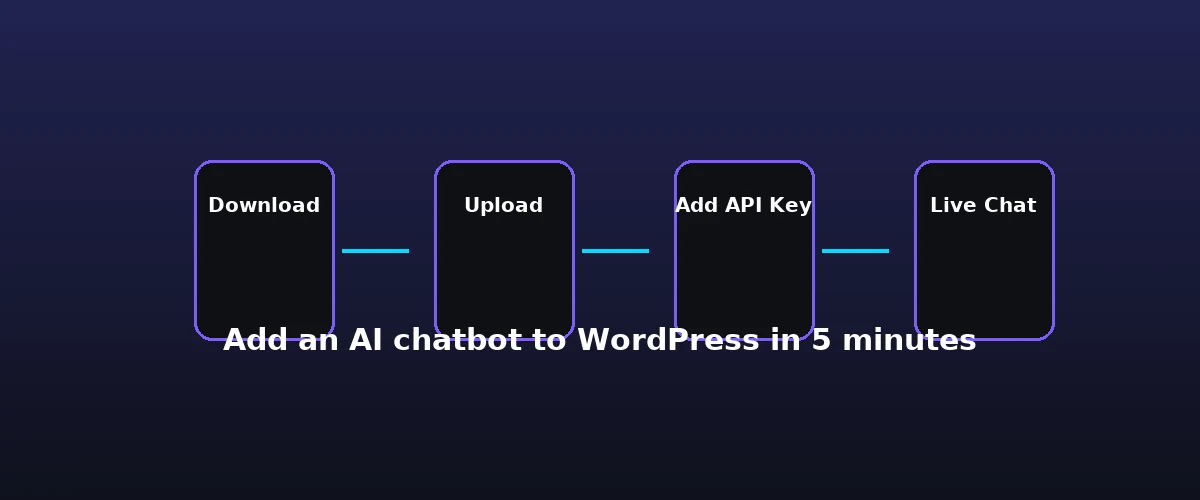
    This guide shows you exactly how to add an AI chatbot to WordPress in five minutes. To add chatbot to WordPress and go live fast, follow the steps below. You have a WordPress dashboard open, a cup of coffee, and a goal: put a functioning AI chatbot on your site before your break ends. This is not a theoretical exercise. We are going to install YakWP, configure your connection to an LLM, and verify the lead capture flow in real-time. Start by heading over to the official YakWP download page to grab the plugin ZIP file. Do not worry about searching the WordPress repository; this plugin is built as a direct-download tool to keep the architecture lightweight and your server logs clean.

    AI chatbot chat interface on a smartphone
    Chat with an AI assistant from any device.

    Once the file is on your computer, log in to your WordPress admin panel. Go to Plugins > Add New > Upload Plugin. Drag your YakWP ZIP file into the installer and click Install Now, followed by Activate Plugin. At this precise moment, you have successfully deployed the infrastructure. You are now ready to hook up the intelligence layer.

    Step 2: Connect the Brain — Add Your API Key

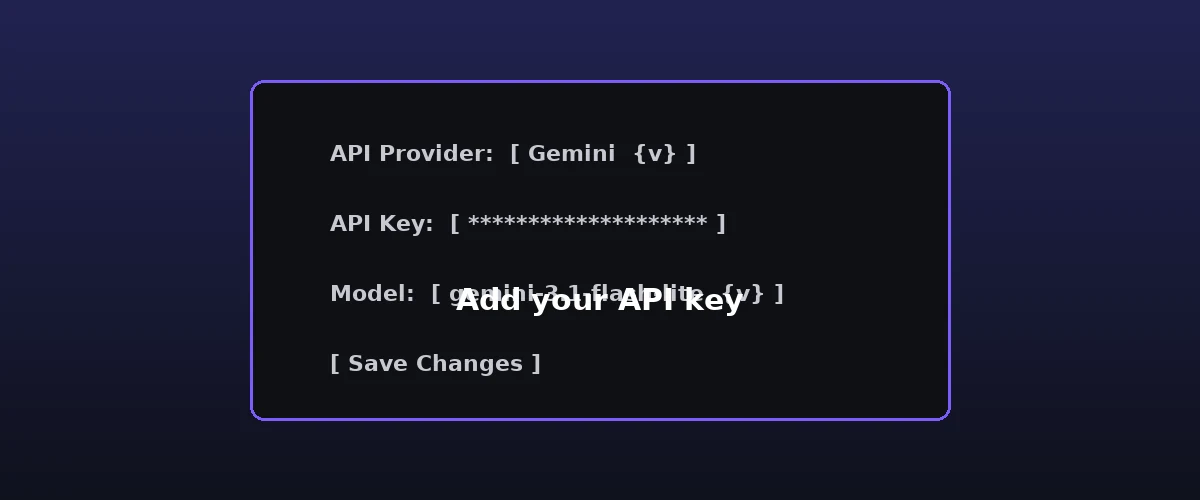
    Your WordPress site needs a brain to process natural language. YakWP is an interface, not the model itself, which is why it requires a “Bring Your Own Key” (BYOK) setup. This approach is superior because you only pay for what you use, rather than paying a flat subscription fee to a middleman. For most users, Google Gemini is the best starting point because their free tier allows for 500 requests per day—more than enough for a typical small-to-medium business site.

    add an ai chatbot to wordpress with an API key
    Paste your provider’s free API key into the YakWP settings field.

    Where to get your API key

    Navigate to the YakWP settings menu in your sidebar. You will see a dedicated field for your API provider. If you choose Gemini, go to the official Google AI Studio portal, generate a free API key, and paste it directly into the input field in your WordPress dashboard. Hit Save Changes. The plugin will immediately verify the connection. If the status light turns green, your site is now talking to a top-tier AI model. No middleware, no secondary accounts, just a direct line from your server to the AI provider.

    Step 3: Configure the Chat Mode

    add an ai chatbot to wordpress and configure the chat widget
    Choose the chat mode that fits how you want to talk to visitors.

    Pick the mode that fits your goal

    An AI is only as useful as its instructions. In the Modes tab of the YakWP settings, you will see four presets: Sales, Support, Explain, and Custom. If you are running an e-commerce store, select Sales. This mode is fine-tuned to recognize buying intent. When a visitor asks about your pricing or product availability, the AI won’t just ramble—it will look for an opportunity to capture their email address. This is the “Lead Capture” feature in action, which automatically triggers a prompt for the user’s contact information when it detects a high-intent inquiry.

    If you prefer a more technical approach, select Support. This tells the AI to prioritize your site’s existing posts and pages as the knowledge base. YakWP uses RAG (Retrieval-Augmented Generation) to search your internal database before answering. This means your chatbot won’t hallucinate; it will pull answers directly from your specific blog content, product descriptions, or documentation pages. Once you pick the mode, the chatbot is live on your front end.

    Step 4: Automate Your Workflow with Webhooks

    What the webhook sends

    The true power of a self-hosted AI is what happens *after* the conversation ends. In the Integrations tab, you will see a field for Webhooks. This is where you connect your chatbot to the rest of your business. If you use n8n, Zapier, or Make, simply paste your webhook URL here. Every time a visitor interacts with the chat, YakWP will bundle the conversation data—including the visitor’s original message, the AI’s response, their captured email address, the specific page URL they were viewing, and a timestamp—and send it to your chosen platform.

    This allows you to automate follow-up emails, update your CRM, or add them to a lead sheet. For a full walkthrough of the workflow side, read our guide to using a WordPress chatbot with n8n to automate your leads, or this breakdown of how chatbot webhooks work. If you already have the free plugin running and want more control, our YakWP free vs pro comparison shows what the upgrade adds.leads to a Slack channel the moment they engage with the site. Because the data originates from your own WordPress database, you have complete control over retention. You can set the plugin to keep logs for 30 days, 90 days, or indefinitely, ensuring your GDPR compliance is managed exactly how you define it.

    Step 5: Customize It for Your Brand

    By default, the free version of YakWP displays a professional, clean “Powered by Yak” branding. This is a functional, fully-featured AI assistant that gives you the same RAG capabilities as the premium version. However, if you are building an agency site or a high-end corporate presence, you may want to remove that branding or adjust the styling to match your theme perfectly. For those who need complete design control, you can check out the YakWP pricing page to upgrade to the Pro version.

    Upgrading gives you three specific, non-negotiable advantages for professional sites:

    • White-labeling: Remove all “Powered by Yak” references for a seamless, branded experience.
    • Custom CSS: Apply your exact brand colors, fonts, and widget positioning without touching a line of core code.
    • Exportable Data: Pro users can export entire conversation histories to CSV files, which is essential for auditing, training, or manual lead processing.
    These changes happen in the Appearance tab of your settings. Simply paste your custom CSS snippets into the box, save, and refresh your site. The chatbot will inherit your site’s personality instantly.

    Rate Limits, Security, and Going Live

    Security is the silent killer of many chatbot implementations. Because you are using your own API key, you need to ensure no one is spamming your bot to inflate your costs. YakWP includes built-in rate limiting. You can define how many messages a single user can send within a specific timeframe. This prevents automated bots from exhausting your free API quota, keeping your site fast and your budget predictable. It is a set-and-forget security layer that protects your server resources while keeping the user experience frictionless for actual humans.

    The entire process—from download to a live, branded AI assistant with an active API key—usually takes about five minutes. That is the practical, no-developer way to add chatbot to WordPress. The result is a fully self-hosted assistant that answers using your own content, keeps your data on your server, and costs nothing beyond the API usage. For the wider picture of what a chatbot does and why it matters, start with our what is an AI chatbot guide, or think about why bring-your-own-key matters for a self-hosted setup.webhook automation—takes roughly five minutes if you have your API key ready. You are not building a complex integration; you are simply flipping a switch on an existing, high-powered engine that lives entirely within your WordPress ecosystem. By keeping the RAG search local to your database and your chat logs inside your own SQL tables, you avoid the privacy trade-offs that usually come with third-party widgets.

    FAQ

    Do I need to pay for a subscription to use the AI features?

    No. YakWP is designed to use your own API key from providers like Google Gemini or OpenAI. You only pay the provider (like Google or OpenAI) directly based on your usage. If you stay within the free tiers provided by those services, your chatbot costs you nothing in recurring monthly fees.

    Does the chatbot slow down my website speed?

    Because YakWP is self-hosted, it does not load heavy external scripts from a third-party chat provider’s platform. The chat widget is optimized for WordPress, and all processing is handled by the API communication, ensuring your site’s PageSpeed scores remain high and your core web vitals are not negatively impacted.

    Can I use the free version for a business website?

    Yes. The free version is fully functional. It includes RAG search of your own content, lead capture, and webhook integration. The only difference between the free version and the Pro version is the presence of “Powered by Yak” branding, the ability to remove that branding, and the inclusion of advanced features like CSV exports and custom CSS editing.

    What happens to my data if I uninstall the plugin?

    When you uninstall YakWP, your conversation logs remain in your database until you delete them or choose to clear your plugin data. You own your data entirely. Because the plugin is self-hosted, you can back up your database at any time and retain a full copy of every interaction your visitors have had with your chatbot.