
▶ Listen to this article
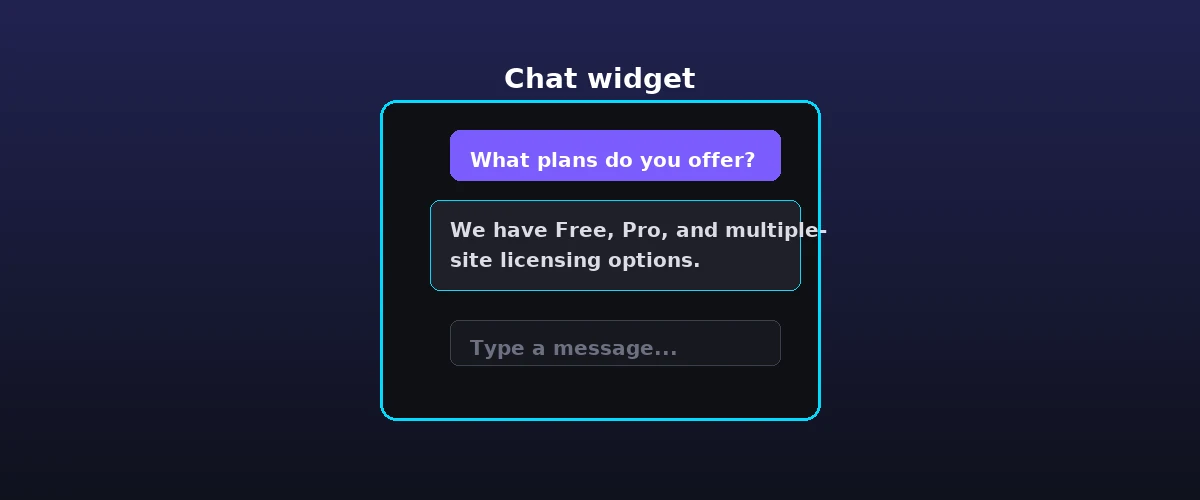
Sarah is browsing your WordPress site at 2:14 PM on a Tuesday. She is exactly the kind of visitor a wordpress chatbot n8n workflow is designed to capture: a real person with a real question, arriving at the moment of intent. She lands on your pricing page, feels a moment of hesitation about your tiered plan, and clicks the YakWP chat icon. She types, “Does the Pro license include white-labeling?” The AI, having been fed your specific documentation via RAG, responds instantly: “Yes, the Pro license removes all branding and lets you customize the widget CSS.” Sarah is satisfied, but she has one more question: “Can I get a demo for my team?” Your AI assistant prompts her for her email address. She enters sarah@example.com.
At that exact millisecond, your WordPress site fires a webhook. Your n8n workflow catches that packet of data, adds her to your CRM, tags her as a “High Intent Lead,” and triggers a Slack notification to your sales rep. This is how you automate lead follow-up without manual intervention.

The beauty of this architecture is that it turns your website into an active participant in your sales cycle. Instead of waiting for Sarah to find a contact form or send a cold email, the chatbot acts as the intake clerk, and the automation platform acts as the engine that moves the lead forward. Because YakWP is a self-hosted WordPress chatbot, you own the entire bridge between the visitor and your workflow tools. You are not reliant on a SaaS intermediary to authorize these connections. You configure the endpoint, YakWP sends the payload, and your automation engine does the rest.
The Technical Payload: Anatomy of a Lead
When you configure a webhook in YakWP, the plugin sends a JSON object to your chosen URL every time a lead is captured. This isn’t just a notification; it is a full record of the interaction. If you are building workflows in n8n or Make, you need to understand the structure of this payload to map your data correctly. The payload contains specific fields that allow you to segment your leads before they even hit your CRM.
When you enable the webhook in YakWP, the plugin POSTs a JSON object to your chosen URL for every visitor message. Here is exactly what the payload contains:
{
  "message": "Does the Pro plan include exports?",
  "reply": "Yes, the Pro plan includes CSV conversation export.",
  "sessionId": "a1b2c3d4e5f6",
  "url": "https://yoursite.com/pricing/",
  "timestamp": "2026-08-29 14:14:03"
}- message: The exact text the visitor typed. This lets you categorize intent — “Pricing Inquiry” vs “Technical Support” — by keyword or keyphrase.
- reply: What the AI answered. Useful for logging context in your CRM so a rep knows what the lead was already told.
- sessionId: A unique identifier for the conversation. Because the same sessionId is reused across a visitor’s messages, you can group all messages from one person into a single thread.
- url: The page the visitor was on when they messaged you — a strong intent signal (a message on /pricing/ means something different from one on /support/).
- timestamp: When the message happened, useful for time-sensitive follow-ups.
By mapping these fields into a tool like n8n, you can create conditional logic. For example, if the Page URL contains “/pricing/”, you might route that lead to a “Sales Priority” board in Trello. If the Visitor Message contains words like “bug” or “broken,” you route that to a Jira project for your support team. This level of granularity is what separates professional lead management from a cluttered inbox full of generic “contact us” emails.
Building Your Automation Workflow in n8n
To start, you need a webhook trigger in your automation platform. In n8n, add a “Webhook” node. Set the HTTP method to POST and copy the provided URL. Paste this URL into the settings menu within your YakWP admin panel inside WordPress. Once saved, YakWP forwards the JSON payload to this endpoint for every visitor message after you enable the webhook toggle. Use it to capture every interaction, and filter for the messages that matter inside your workflow.
The next step is data normalization. Your CRM, whether it is HubSpot, Pipedrive, or a simple Google Sheet, expects data in a specific format. Use a “Set” or “Code” node in n8n to map the YakWP payload fields to your CRM’s API fields. For example, you can use the url field to detect intent (a message on /pricing/ is a buying signal, a message on /support/ is a help request). If the conversation needs a contact record, look the visitor up by their sessionId, or prompt them for an email in a follow-up step and store it in your CRM. Update the record with a note containing the message and the AI reply, or create a new contact and assign them to a drip campaign.
This flow is resilient. Because the data is being sent from your own WordPress installation, you avoid the rate limits and API costs associated with third-party chatbot services that throttle your ability to move data. You can download the YakWP plugin to begin testing this webhook functionality immediately. Since the tool supports Bring-Your-Own-API-Key configurations, your overhead remains low while your lead capture capabilities scale with your traffic.
Three Real Webhook Automations You Can Build Today
To make this concrete, here are three automations that take minutes to set up and solve real problems. Each one starts with the same webhook node configured in n8n, Zapier, or Make — the only difference is what happens after the payload arrives.
1. Send Every Qualified Message to Slack
Create a webhook trigger in Slack (or install the n8n Slack node), and map the payload’s message and url fields into the message text. Add a filter so only messages from /pricing/ or /plans/ are posted. Now a sales message lands in your team’s channel the instant a visitor sends it — no CRM refresh needed, zero delay.
2. Log to Google Sheets for a Clean Lead Sheet
Point a Make or n8n module at a Google Sheet and write each incoming payload as a new row: message, AI reply, sessionId, page URL, and timestamp. You now have a searchable, filterable record of every conversation — a simple start that later becomes the data source for your reporting. Set a column for “handled” and mark rows as you follow up.
3. Create a CRM Contact Automatically
For HubSpot, Pipedrive, or a similar CRM, map the payload to a Create Contact action. Use the page URL to pick the correct pipeline, and note the AI reply so the sales rep opens the contact knowing exactly what was already discussed. Because the webhook fires for every message, you never lose a conversation — even ones that never turned into a form fill.
The common thread is that the YakWP webhook gives you the raw material, and the automation platform decides what to do with it. You can combine these patterns — filter in n8n, log everywhere, and create CRM records selectively — without writing any custom code.
Scaling Lead Quality with Contextual Data
Automating the capture of the lead is only half the battle. The real value is in the context. Generic forms often fail because they don’t capture the “why” behind the conversion. When a lead arrives via your chatbot, they have already received a personalized response from your AI. By forwarding the AI Response as part of your webhook, your sales team is armed with the full history of the conversation before they even pick up the phone.
Consider the difference between a cold lead from a contact form—”I’m interested in your product”—and a lead from YakWP: “Visitor asked about Pro features on the pricing page, received an explanation about white-labeling, and provided email for a demo.” The latter is a qualified lead. The automated follow-up email you trigger from n8n can reference the chat directly: “Hi Sarah, I saw you were chatting with our AI about the Pro white-labeling features. I’d love to show you how that looks in our custom widget settings.” This level of personalization drastically increases conversion rates.
Security, Performance, and GDPR Compliance
Because YakWP is self-hosted, your webhook integration is inherently more secure than relaying visitor data through a third-party server. You control exactly what leaves your WordPress installation and where it goes. However, you must prioritize data privacy. Ensure that your webhook endpoint is protected by a secret token or basic authentication, which most automation platforms support natively.
Furthermore, YakWP includes built-in GDPR compliance tools. When you set up your automated workflows, ensure that you are only capturing data when the user consents, or ensure that your privacy policy reflects that chat data is processed through your internal automation pipeline for the purpose of managing inquiries. The plugin stores conversations within your WordPress database, which is useful for audit trails, but you should configure the retention settings to match your data management policies. If you decide to upgrade to the Pro version, you can review the YakWP pricing page to see how white-labeling and additional features can further professionalize your visitor experience.
Why Self-Hosted Beats SaaS for Lead Pipelines
Most chatbot providers charge you based on the number of leads captured or the number of messages processed. They effectively hold your lead data hostage behind a paywall. By choosing a self-hosted solution, you remove these artificial barriers. Whether you capture ten leads or ten thousand, your costs remain predictable. Your lead data is stored in your local WordPress database, not on a server in a foreign jurisdiction controlled by a chatbot vendor.
The webhook integration is the ultimate leverage point. It allows you to build a custom tech stack that evolves as your business grows. Today, you might just send an email to yourself. Tomorrow, you might integrate with a complex sales intelligence platform that scores the lead based on the Page URL and the length of the interaction. Because YakWP is built on standard web technologies, the integration potential is limited only by what you can build in your automation tool of choice.
FAQ
Can I use YakWP with free automation tools like n8n or Make?
Yes, absolutely. YakWP sends standard JSON payloads via POST requests. You can point the webhook URL to any service that accepts incoming webhooks, including self-hosted n8n instances, Make (formerly Integromat) scenarios, Zapier webhooks, or even your own custom Node.js or PHP scripts.
What happens if my automation platform is down when the webhook fires?
Because YakWP is self-hosted, it logs the conversation in your WordPress database regardless of whether the webhook succeeds. While the specific webhook attempt might fail if your external service is offline, the lead capture data remains safely stored within your WordPress site. You can manually re-trigger or export the data later if needed.
Does the webhook include the full conversation history?
The webhook payload provides the visitor’s message, the AI’s response, the captured email, the URL, and the timestamp. This is usually sufficient for CRM integration. If you need to export the entire history of a specific conversation, you can use the Pro version to export conversation data in CSV format directly from the WordPress dashboard.
Is there a limit to how many leads I can send through webhooks?
There is no arbitrary limit imposed by YakWP. Since the plugin is self-hosted on your infrastructure, your capacity is limited only by your server’s resources. We implement rate limiting to protect your AI API usage, but this does not prevent you from sending as many webhook notifications as your automation infrastructure can handle.